 Deutsch

FASTPANEL is a third-party web-hosting control panel that you install and operate on your own server. This guide follows FASTPANEL's official Ubuntu installation and first-login flow for a fresh Ubuntu 24.04 VPS.
Prerequisites and supported Ubuntu releases
FASTPANEL's official installation page lists Ubuntu 18.04, 20.04, 22.04, and 24.04 as supported. Use a fresh supported installation, root SSH access, a public IP address, working DNS where you plan to use a hostname, and capacity appropriate to the sites, databases, mail components, backups, and logs you will run.
Read the official FASTPANEL installation page immediately before installing. Third-party control-panel requirements and installer behavior can change after this article's review date.
Before running a remote installer, preserve required server data and configuration, confirm a recovery path, and review the script URL and TLS certificate. Installing a panel changes packages, services, listeners, firewall requirements, and the server's attack surface.
Step 1: update packages and install wget
Connect as root, update the package index, apply current updates, and install the download tool used by the official command:
apt-get update
apt-get upgrade -y
apt-get install -y wget
If a kernel or critical service update requires a reboot, reboot and reconnect before installing the panel.
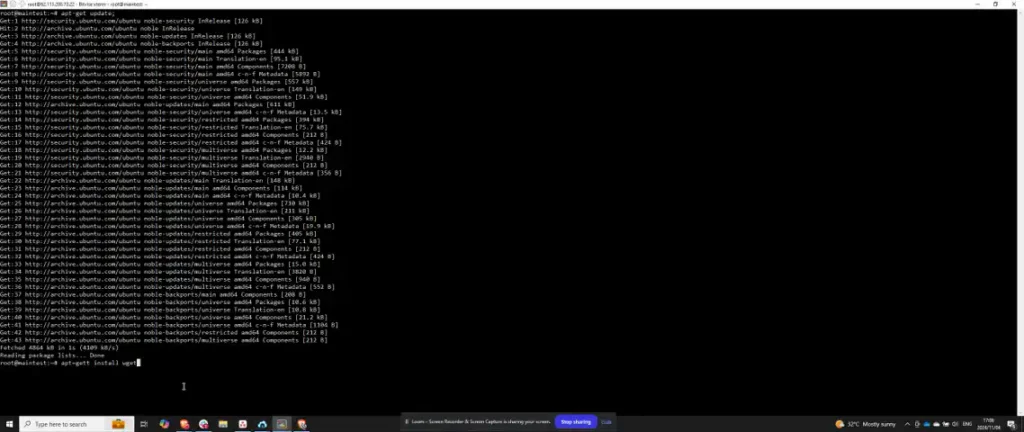
Step 2: run the official FASTPANEL installer
As of the review date, FASTPANEL documents the HTTPS command below for Debian and Ubuntu. The command downloads and immediately executes a remote script; where your operating policy requires checksum or signature verification, stop and use an approved reviewed installation process because the cited FASTPANEL page does not publish either value. Before execution, inspect the current official documentation and script at the pinned repo.fastpanel.direct source, confirm that it detects the intended operating system, and keep the recovery point described above:
wget https://repo.fastpanel.direct/install_fastpanel.sh -O - | bash -Do not substitute the old HTTP URL. The official bootstrap script selects the distribution-specific installer. Keep the terminal output: on completion it prints the panel URL, login name, and generated password.
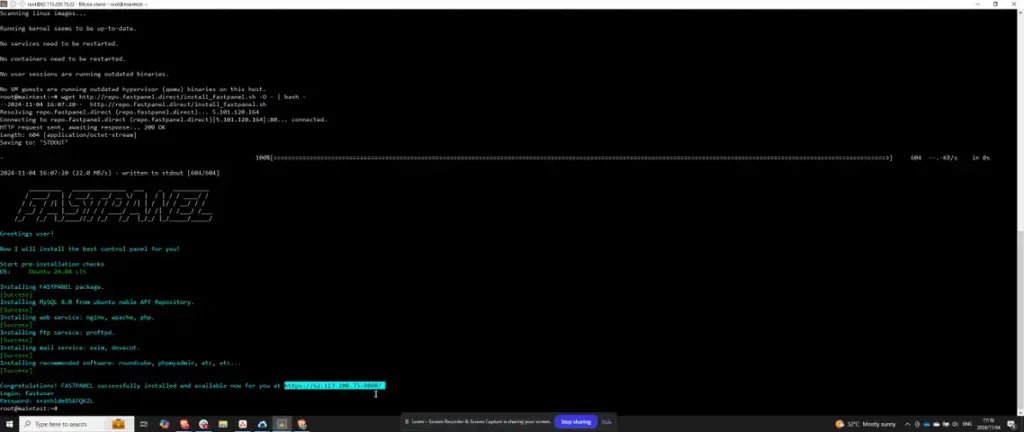
Step 3: review network exposure and open the panel
The official documentation shows FASTPANEL at https://SERVER_IP:8888 after installation. Review the host firewall and any separately available provider firewall before exposing port 8888. Restrict panel access to trusted administrator sources where practical, while preserving SSH and the documented recovery path.
Open the exact HTTPS URL printed by the installer. Verify the certificate state rather than ignoring an unexpected browser warning. A temporary certificate or IP-based access may require a planned hostname and certificate correction before production administration.
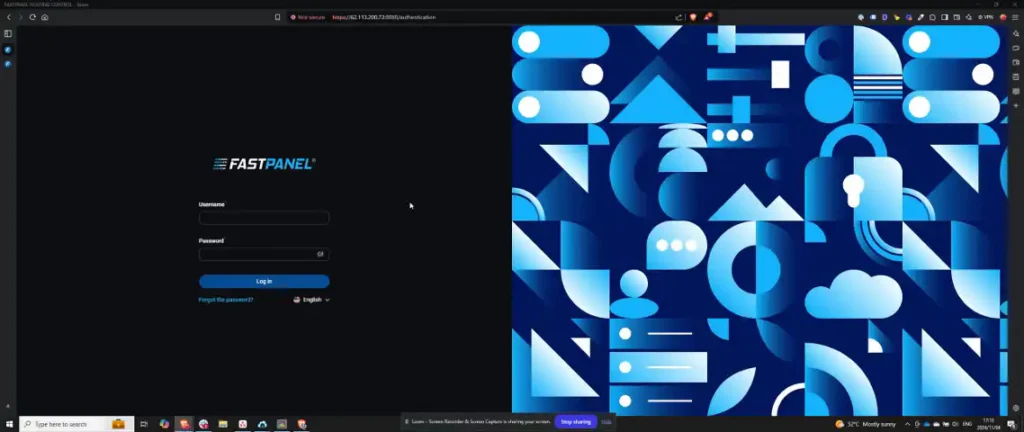
Step 4: first login and license email
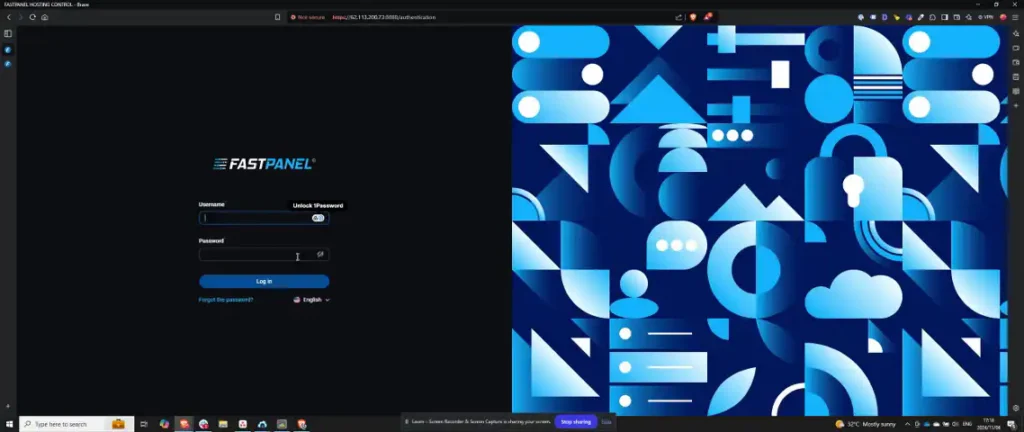
Sign in with the fastuser login and generated password printed by the installer. FASTPANEL's official installation page states that the first login asks for a license email address and sends the license data to that address.
Use an organization-controlled email address that responders can access. Follow the current on-screen and email instructions from FASTPANEL; do not use the malformed cbfastpanel.directorder value from the previous article because it is not an official documented URL.
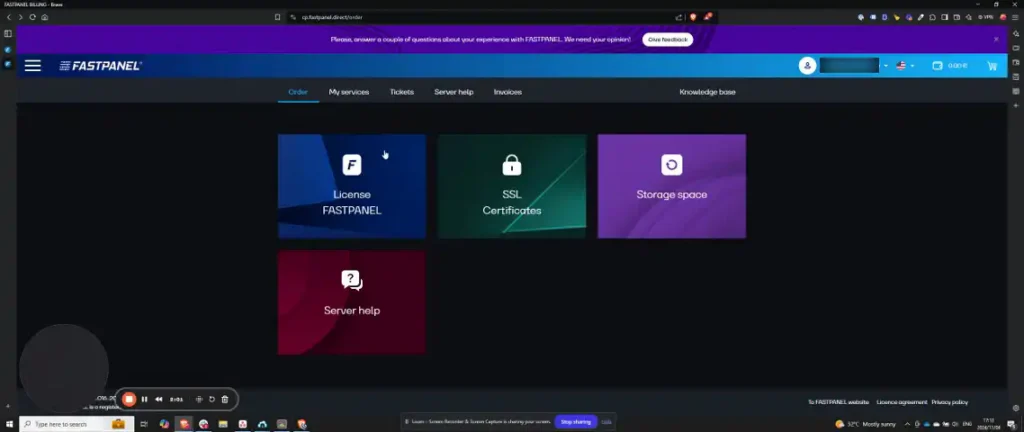
Step 5: secure the administrator account
Replace the generated password with a unique strong value, confirm the recovery email, review every administrator account, and remove any account that is not required. Store recovery information in an access-controlled credential system instead of a shared document or shell history.
Log out and sign in again to prove the new credential works before closing the installation session. Use FASTPANEL's current official reset procedure if recovery is needed; do not invent a reset URL or license checkout flow.
Step 6: review terms and initial settings
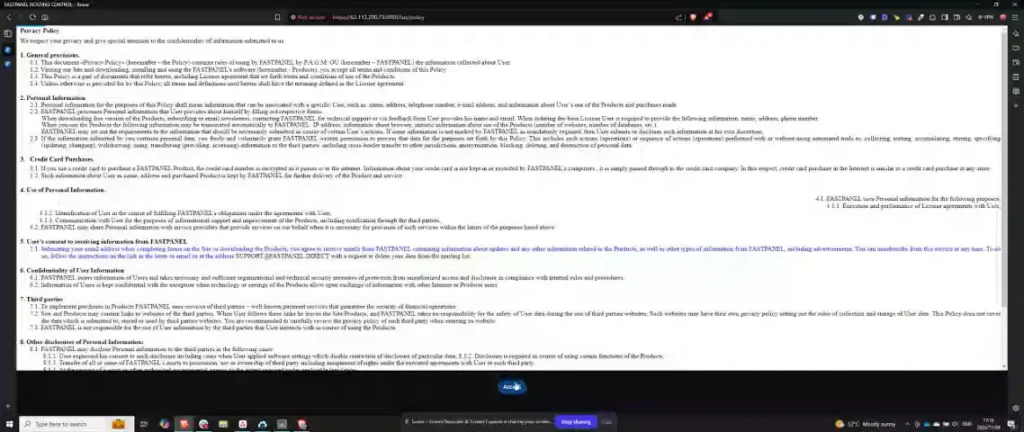
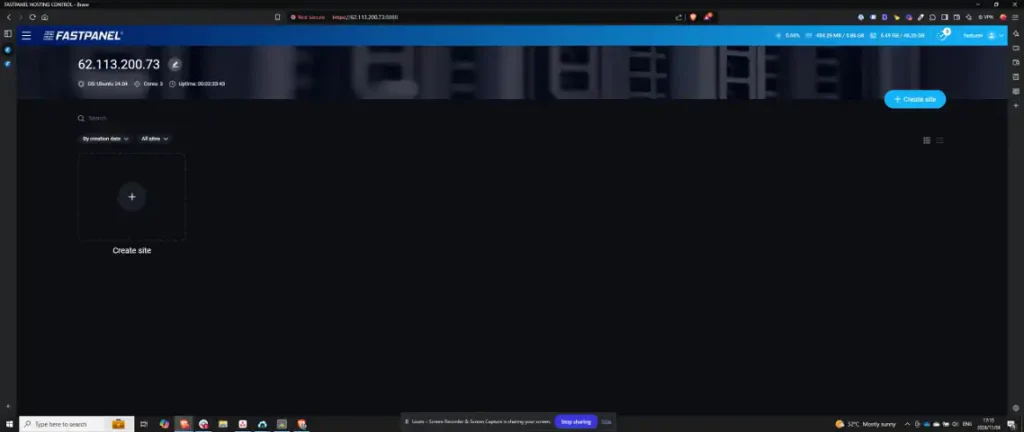
Read the current FASTPANEL terms and privacy notice presented in the product, then let the authorized account owner decide whether to accept them. Review the server IP, hostname, timezone, update state, notifications, and license status before creating a site.
Run it on a Linux VPS
Get full root access, NVMe storage and a self-managed Linux server for your own stack.
Step 7: post-install verification and recovery
Before production use, verify all of the following:
- firewall exposure matches the documented SSH, web, DNS, mail, and panel requirements for the workloads you actually enable;
- the panel URL has the intended HTTPS certificate and hostname;
- only approved administrator accounts exist and the new password/recovery email work;
- FASTPANEL and installed system packages report the expected update state;
- each enabled service is intentional and unnecessary listeners are disabled;
- application data, databases, panel/server configuration, and DNS records have a documented independent backup location; and
- a restore or rebuild test proves the recovery procedure instead of assuming the panel or VPS is the backup.
Create a non-production test site, verify its DNS, TLS, file ownership, database access, logs, and deletion/rollback path, then remove it if it is no longer needed.
Troubleshooting
If the installer fails, preserve its output and check the supported OS, architecture, DNS resolution, available storage, package-manager state, and outbound HTTPS access. Do not repeatedly pipe the installer into Bash without understanding the first failure.
If the panel does not load, confirm that FASTPANEL reported a successful installation, the service is listening on port 8888, and each firewall layer permits the intended administrator source. If authentication fails, use the current official FASTPANEL password-reset documentation.
FASTPANEL is customer-installed and customer-managed software on Virtarix. Virtarix does not provide preinstallation, one-click deployment, managed operation, updates, migration, or vendor support for it.



