 Deutsch

This guide installs the Nginx, PHP, and MariaDB base stack for CMS development on an Ubuntu VPS. It stops after the services are installed, hardened, and verified; it does not install WordPress or another CMS.
Run the commands from an account with sudo access. Before changing an existing server, confirm that you have a current backup and a tested recovery path. Virtarix VPS services are self-managed, so package maintenance, firewall rules, application installation, and recovery remain customer responsibilities.
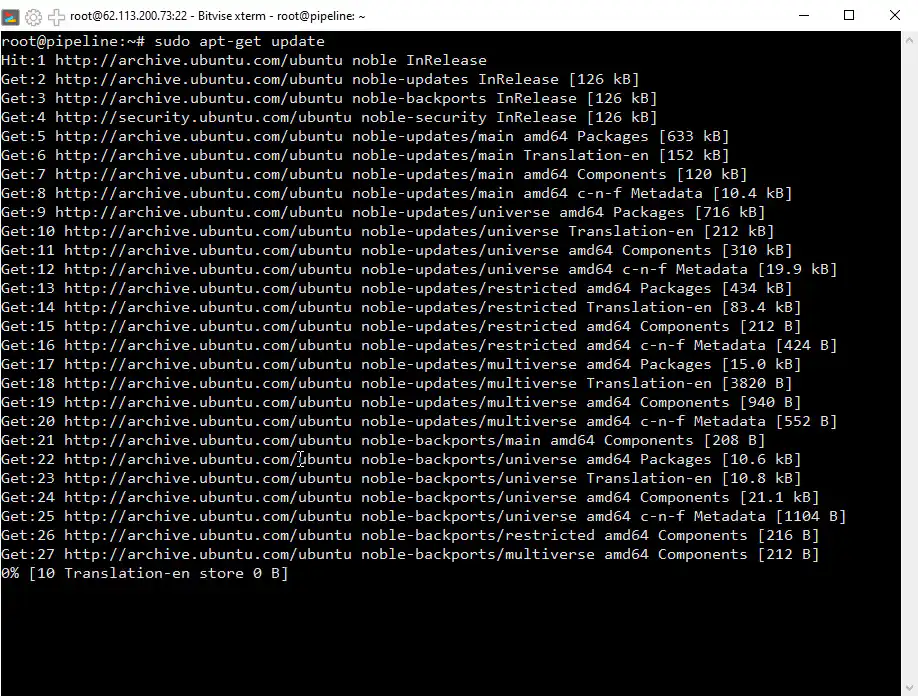
Step 1: update package list
Begin by updating the package index:
sudo apt update
Step 2: install PHP and essential modules
Install PHP-FPM and the common modules needed by many PHP-based CMS applications:
sudo apt install -y php-fpm php-cli php-mysql php-xml php-gd php-curlThe CMS you choose may require additional extensions. Check its current requirements before installing the application.
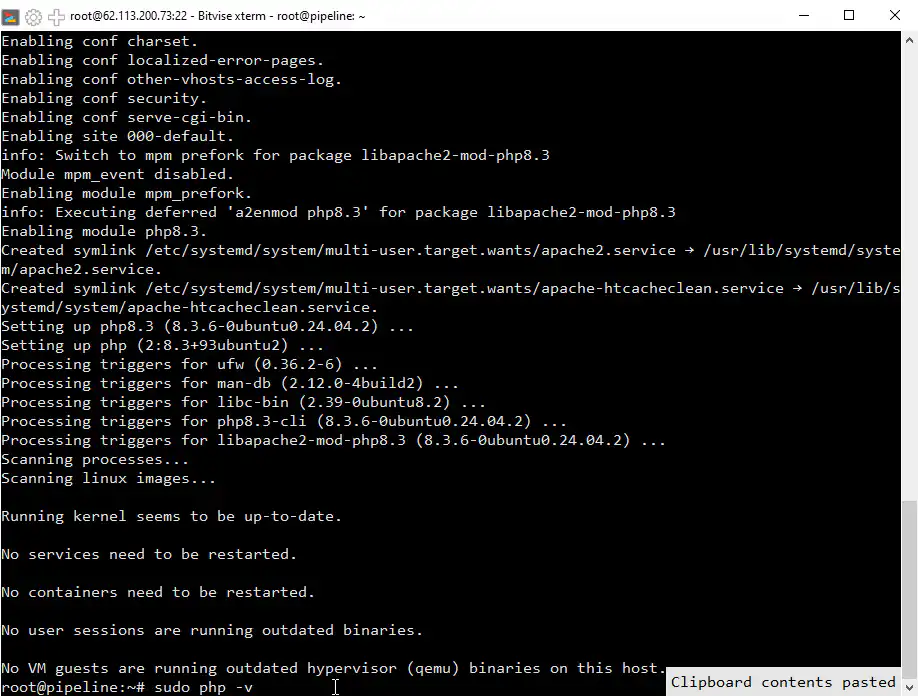
Step 3: verify PHP installation and install Nginx
Verify the installed PHP version, then install Nginx:
php -v
sudo apt install -y nginx
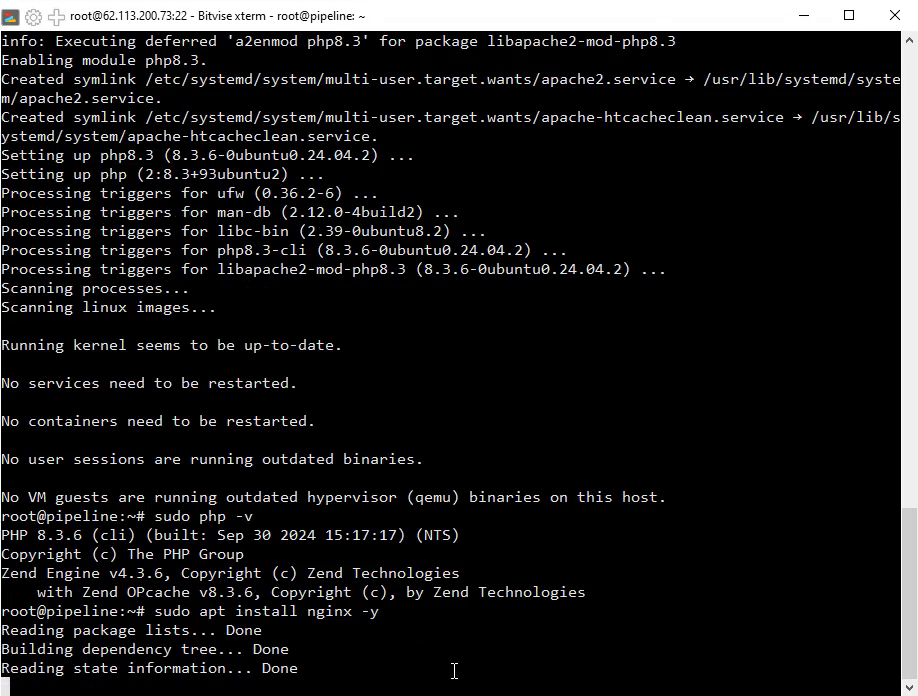
Step 4: check Nginx installation and install MariaDB
Verify the Nginx package and install MariaDB:
nginx -v
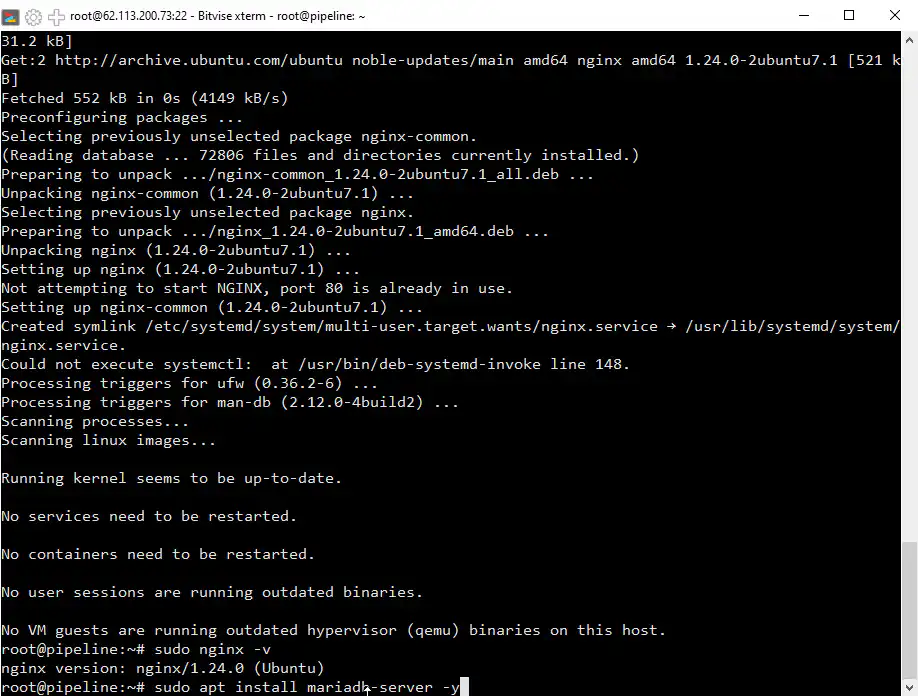
sudo apt install -y mariadb-server
Step 5: secure MariaDB setup
Run MariaDB's interactive hardening utility:
sudo mariadb-secure-installationRead each prompt rather than copying fixed answers. Authentication defaults can differ by MariaDB and Ubuntu release, and changing the database root authentication method without a reason can break local administration.
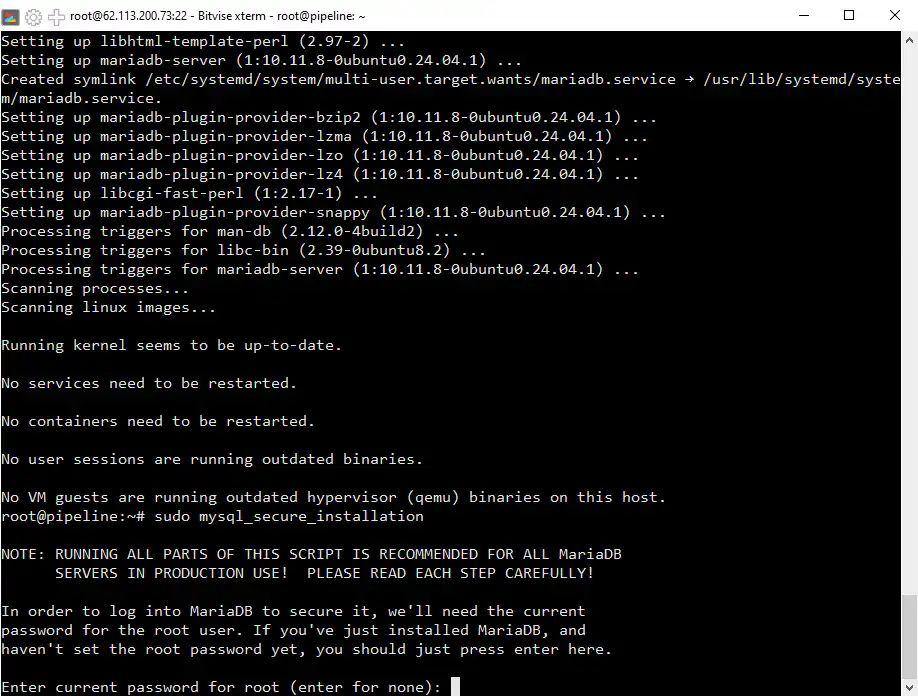
Step 6: configure MariaDB authentication and password
Keep an authentication method that you understand and can recover. On Ubuntu, local administrative access commonly uses Unix-socket authentication with sudo mariadb; do not replace it with password authentication merely to follow an old screenshot. If your environment requires database-root password authentication, store the credential securely and verify access before ending the session.
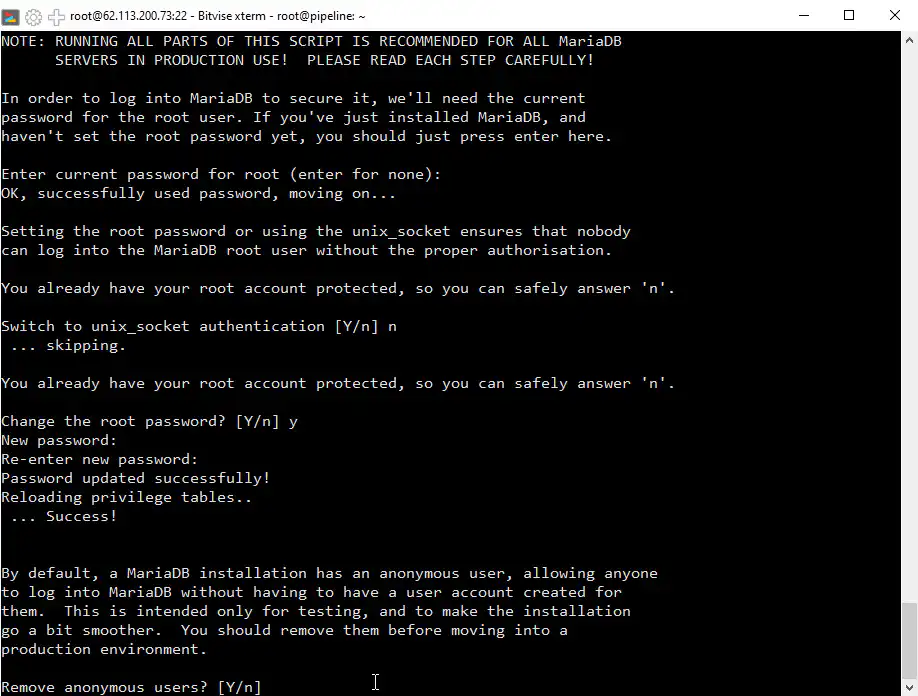
Step 7: finalize MariaDB security settings
Remove anonymous users and the test database unless a documented development requirement needs them. Restrict remote database-root access, reload privileges when prompted, and record any answer that differs from your team's standard.
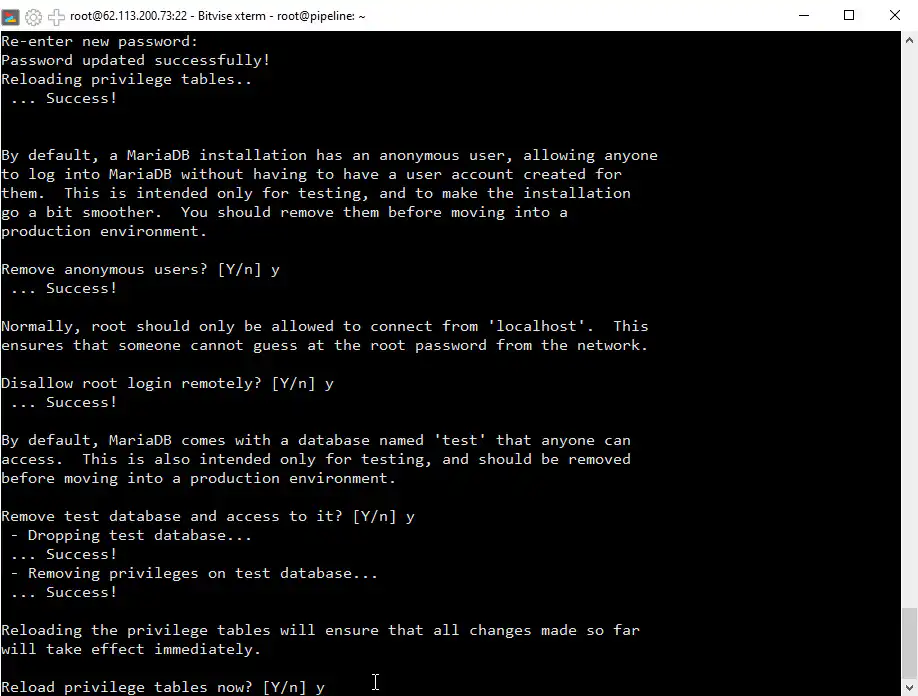
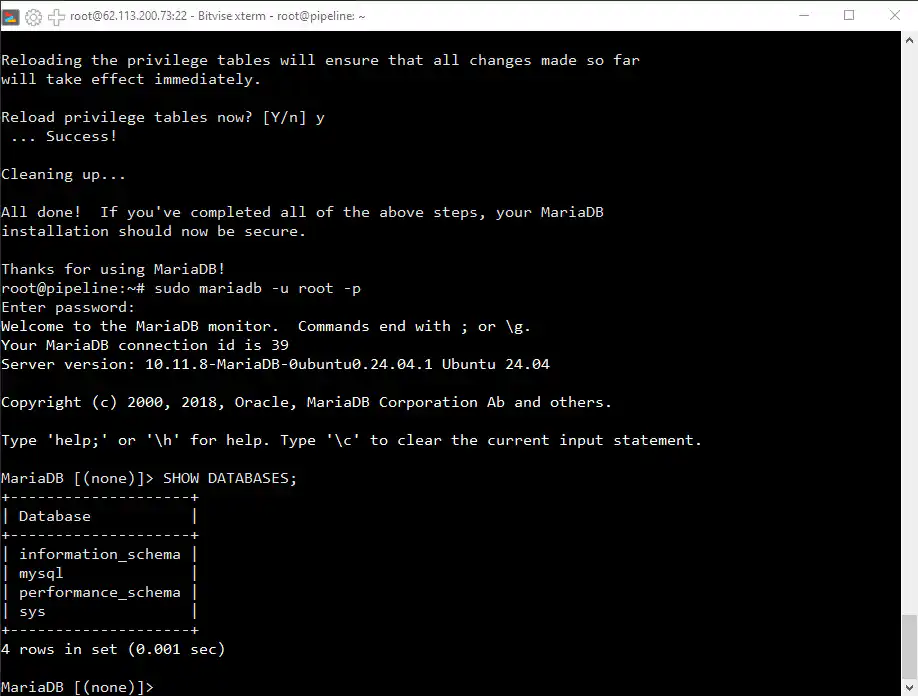
Step 8: verify MariaDB access
Verify local administrative access and list the databases:
sudo mariadb
SHOW DATABASES;
EXIT;
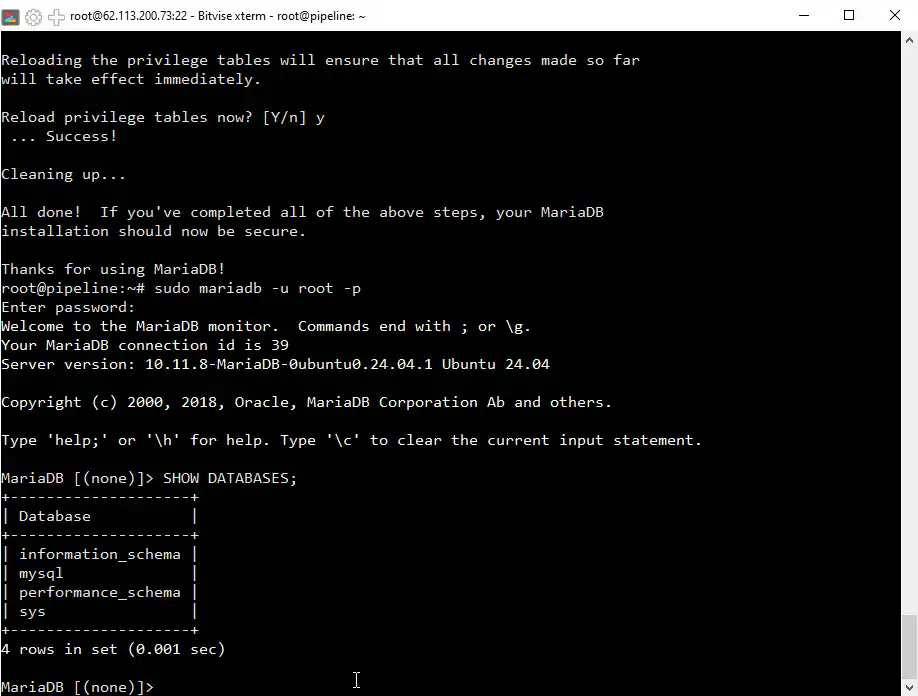
Step 9: verify the base services
Confirm that Nginx and MariaDB are active and that PHP-FPM has an installed service unit:
sudo systemctl is-active nginx
sudo systemctl is-active mariadb
systemctl list-unit-files 'php*-fpm.service'
Also review sudo nginx -t, the listening sockets with sudo ss -lntp, and the host/provider firewall rules before exposing the server. Do not expose MariaDB publicly for a normal single-server CMS stack.
Find your next useful guide.
Next step: install your CMS
The base Nginx, PHP-FPM, and MariaDB environment is now installed, but no CMS, application database, virtual host, DNS record, or TLS certificate has been created. Continue with installing WordPress on this Nginx VPS.
Before installing any CMS, compare its current PHP extension, database-version, web-server, and filesystem-permission requirements with this base stack.
Frequently asked questions
What are the basic system requirements for setting up this environment?
Use a supported Ubuntu release, an administrative account with sudo, enough storage for the operating system, packages, logs, database, application files, and backups, and a tested recovery path. Size CPU and memory from the chosen CMS, extensions, traffic, database, and development workload rather than a universal minimum.
What should I do if the installation of Nginx or MariaDB fails?
Read the exact package-manager error first. Confirm repository and network access, available disk space, and whether another package operation holds the lock. Do not run a broad upgrade as a generic reaction; resolve the identified cause and retry the failed package operation.
How do I check if PHP, Nginx, and MariaDB are running correctly?
Use php -v for the CLI version, inspect the PHP-FPM service unit, run sudo nginx -t, and check systemctl is-active for Nginx and MariaDB. A running service is only the base check; the later CMS guide must also verify PHP execution, database access, virtual-host routing, DNS, and TLS.
Is it necessary to configure the MariaDB security settings, and what do they do?
Yes. The interactive utility helps remove anonymous access and test data and restrict administrative access. Read the prompts for your installed release and preserve a working, recoverable local administrative login; do not force password authentication when the server is intentionally using Unix-socket authentication.



