 Deutsch

This guide provides a comprehensive process for setting up a PostgreSQL database on a Virtual Private Server (VPS) and remotely connecting to it using pgAdmin. It is specifically tailored for Ubuntu 22.04 LTS (Jammy Jellyfish) or other Debian-based systems that use the apt package manager. Commands and configurations provided in this guide may differ for other Linux distributions.
The tutorial covers updating the system, configuring PostgreSQL settings, securing connections, and testing the setup to ensure a reliable and secure database environment.
Step 1: update the system
Begin by updating the system. Open your terminal and run the following commands to update the package lists and upgrade installed packages:
sudo apt update && sudo apt upgradeStep 2: install PostgreSQL
Install PostgreSQL by entering:
sudo apt install postgresqlEnsure you have the latest version by running:
sudo apt updateNext, modify the postgresql.conf file to allow connections from external addresses. Use the command:
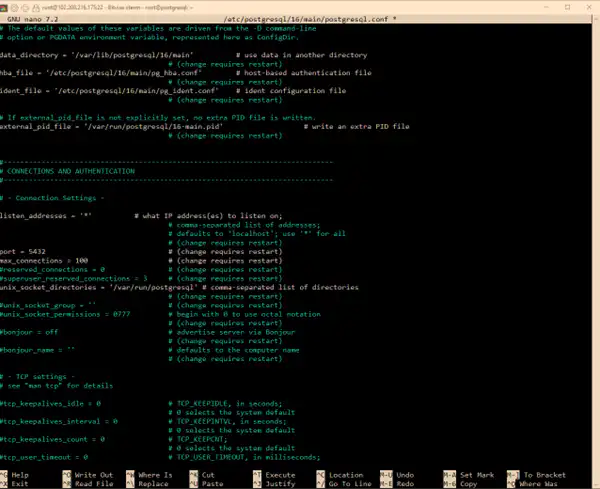
sudo nano /etc/postgresql/*/main/postgresql.conf

Locate the section titled Connections and Authentication and find the line containing listen_addresses. Change this line as follows:
listen_addresses = '*'This change allows the server to accept connections from any address. Save your changes and exit the editor.
Step 3: log in as the PostgreSQL user
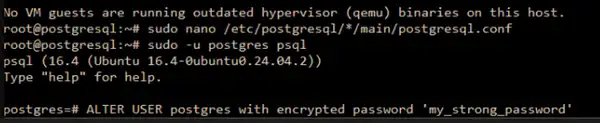
Log in as the PostgreSQL with the command:
sudo -u postgres psqlOnce logged in, update the PostgreSQL user with a new secure password by executing:
ALTER USER postgres WITH ENCRYPTED PASSWORD 'yourpassword';If no error appears, the password update was successful. Exit the PostgreSQL shell by typing:
\q
Step 4: edit the pg_hba.conf file
Edit the pg_hba.conf file to define the authentication methods for remote connections. Use the command
sudo nano /etc/postgresql/*/main/pg_hba.conf
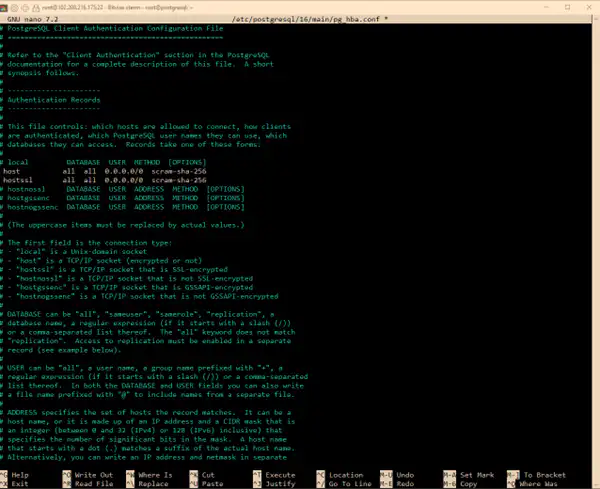
Add the following entries only in an isolated test environment. They expose PostgreSQL authentication to every IPv4 and IPv6 address. For production, replace both networks with trusted client ranges, require hostssl, use a firewall or private network, verify certificate handling, and test access before removing any existing rule.
## Allow remote connections
host    all             all             0.0.0.0/0            scram-sha-256
hostssl all             all             ::/0                 scram-sha-256
Step 5: restart PostgreSQL service
Restart the PostgreSQL service to apply the changes:
sudo systemctl restart postgresql.serviceRun it on a Linux VPS
Get full root access, NVMe storage and a self-managed Linux server for your own stack.
Step 6: configure the firewall
Allow PostgreSQL-related traffic through the VPS firewall. Run the following command:
sudo ufw allow 5432Ensure unauthorized IP addresses are blocked and only trusted ones are allowed.
Step 7: test the connection
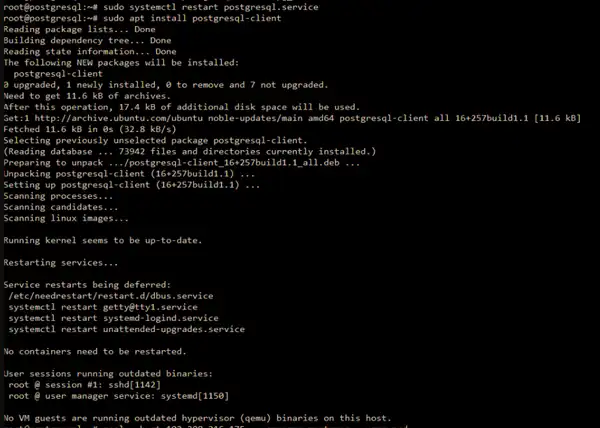
Install the PostgreSQL client if it's not already installed:
sudo apt install postgresql-client
To test the connection, run:
psql --host YOUR_IP_ADDRESS --username postgres --passwordReplace YOUR_IP_ADDRESS with the IP address of your VPS. Press Enter and provide the password when prompted. If successful, you will access your PostgreSQL database.

Step 8: connect via pgAdmin4
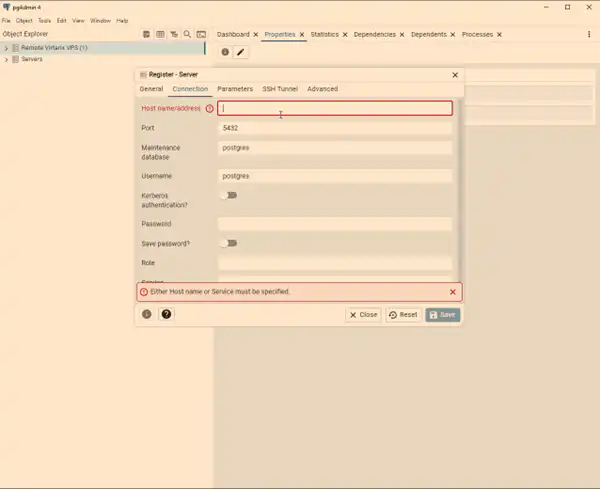
To connect using pgAdmin4, follow these steps:
- Open pgAdmin4 and navigate to Object ➔ Register ➔ Server.
- Enter a name for your server in the "General" tab.
- In the "Connection" tab, input your VPS’s IP address, username, and password.
Click Save.
You should now be connected to your PostgreSQL database via pgAdmin4. Use the pgAdmin4 interface to manage and create necessary databases.
Additional notes
- For production environments, secure your server by restricting IP addresses in the
pg_hba.conffile and using a firewall. - Regularly update your system and database packages to maintain security.
Enjoy managing your PostgreSQL database securely and efficiently!
Frequently asked questions
How do I restrict access to specific IP addresses for improved security?
You can restrict access by modifying the pg_hba.conf file. Replace the 0.0.0.0/0 entry with a specific IP or range. For example:
host all all 192.168.1.0/24 scram-sha-256This limits connections to devices within the 192.168.1.0/24 subnet. Be sure to restart the PostgreSQL service after making changes.
Why can’t I connect to PostgreSQL from pgAdmin4 even after completing all steps?
Common issues include:
Firewall settings
Ensure port 5432 is open using:
sudo ufw allow 5432Incorrect configuration
Verify that listen_addresses is set to * in postgresql.conf and the appropriate entries exist in pg_hba.conf.
Network restrictions
Check if your VPS provider has additional network security rules blocking the connection.
What should I do if I forget the PostgreSQL password?
You can reset the password by logging in as the postgres system user on your VPS and running the following commands:
sudo -u postgres psql ALTER USER postgres WITH ENCRYPTED PASSWORD 'newpassword';Replace newpassword with a strong, unique password. Exit with \q and restart the PostgreSQL service to apply changes.



